Notebook with Camera, Voice, and OCR — Built Locally
I added image uploads, Polish voice dictation, and Tesseract OCR to my self-hosted family app. Everything runs locally, no external APIs.
This post describes features shipped in Home App v2.12, a private family app running on a home server. The code isn't public, but the patterns (TipTap Image, Web Speech API, Tesseract.js) are widely applicable.
Background
A recipe on a scrap of paper, a receipt to file, an idea mid-cooking — they used to end up buried in my phone's camera roll or simply lost.
I've been using the Notebook section of Home App heavily — it's a self-hosted web app that runs on my home server. The one thing missing: richer capture. I couldn't paste a screenshot, take a photo note from my phone, dictate a quick thought hands-free, or attach a file (like a PDF).
Commercial apps (Notion, Evernote, Obsidian Sync) all have some version of this — but my data lives on their servers. I wanted the same, running locally.
Four ways to insert an image
The notebook editor is built on 3. Before v2.12 it handled text, task lists, headings and links. I added four image channels:
1. Drag & drop — drag any image file onto the editor area. A violet dashed overlay appears as a drop zone. Drop it — the image uploads and appears inline.
2. File picker — a toolbar button opens the system file picker. On Android this shows the gallery. On iPhone it also accepts HEIC (the native Apple camera format).
3. Camera — a second toolbar button uses capture="environment" to open the rear camera directly,
with no intermediate step.
4. Clipboard paste — Ctrl+V (or long-press → Paste on mobile) after a screenshot pastes the image
directly via TipTap's paste event handler.
Server-side pipeline
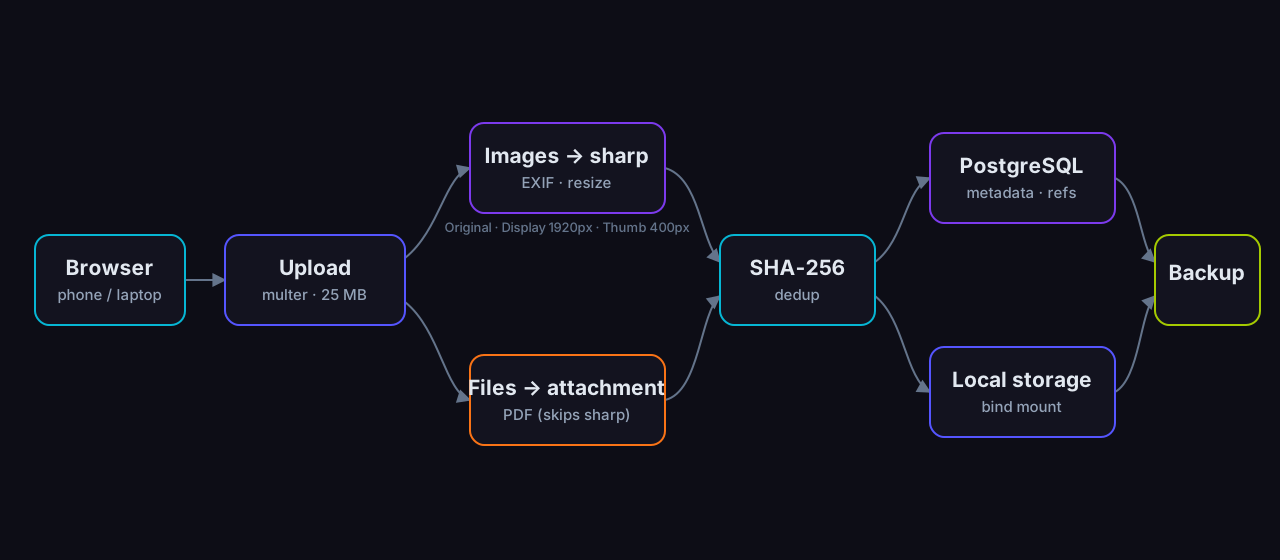
Images go through multer (Express, in-memory, 25 MB limit) into a sharp pipeline:
- Original saved with full EXIF intact
- Display variant: max 1920 px, JPEG q85, EXIF rotation applied
- Thumbnail: max 400 px, JPEG q80
SHA-256 deduplication — uploading the same file twice stores one binary, two references. Files live on a bind-mounted host directory, covered by the homelab's standard backup.
Beyond images, the same endpoint also accepts plain files (e.g. PDF) — these skip the sharp pipeline
and appear in the note as a downloadable attachment (the paperclip button in the toolbar). The allowed
MIME types are enforced server-side.
Polish voice dictation
The Web Speech API (SpeechRecognition) is built into Chrome and Edge — no dependencies,
no server cost. I added a microphone button to the notebook toolbar:
- Click to start → pulsing red dot + "Słucham…" ("Listening…") banner
- Each finalised phrase is inserted directly into the editor
continuous: true+interimResults: true→ streaming text in real time- Language:
pl-PLhard-coded
It works surprisingly well for everyday notes. Specialist vocabulary (technical English terms inside Polish sentences) suffers — but for ideas, task notes and quick observations it's more than enough.
Safari iOS doesn't support Web Speech API; the button is automatically hidden on unsupported browsers.
OCR from a photo (Tesseract.js)
A third toolbar button (wand icon) triggers text recognition:
- Pick a photo (camera or file)
- It uploads through the normal sharp pipeline
- Tesseract.js runs as a Web Worker in the browser
- The
pol+engmodel (~15 MB, cached in IndexedDB after the first download) - OCR returns text → a modal appears with:
- Collapsible image preview
- Editable textarea with recognised text
- Three insert buttons: image only / text only / both (default)
A key detail: receives the display variant from the server (JPEG with EXIF rotation already
applied), not the raw HEIC from iPhone. This eliminates heic2any in the browser.
Accuracy: excellent for printed text, acceptable for legible handwriting, poor for scrawl. I've stubbed a future "Better OCR (AI)" button backed by an vision endpoint — already wired up, waiting for a model to be pulled.
FAB Quick-Capture
A floating + button on the Home screen (bottom right) plus an n keyboard shortcut create a note
without navigating to the Notebook section first. Four actions in a bottom sheet:
| Button | What happens |
|---|---|
| Note | Empty editor opens |
| Photo | Camera → upload → note with image |
| Voice | Empty note + microphone starts automatically |
| OCR | Camera → upload → OCR modal opens in editor |
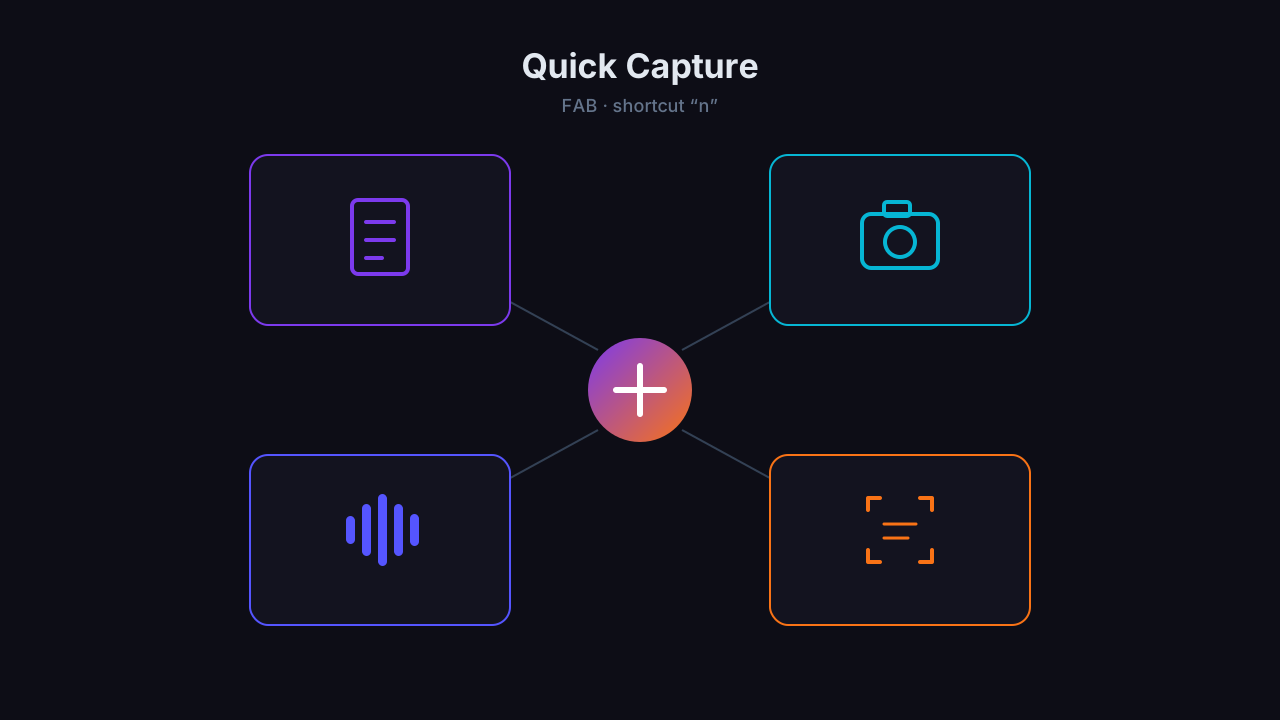
Notes land in the user's default notebook. If no default notebook exists yet, the backend creates Quick Notes and sets it as the default.
Linking notes together
After photos, OCR, and quick capture, one thing was still missing: a way to connect
notes to each other. Not a plain URL link — Obsidian-style: type [[, start a title,
pick a note from the suggestions, and a small violet chip with the link appears in
the text.
Clicking it jumps straight to the linked note. And opening that note shows a "Backlinks" panel — a list of everything that points back to it. The notebook stops being just a chronological list of entries and starts feeling more like a small private wiki: a topic can have its own note, and other entries can refer back to it without copying context.
Under the hood there's no separate relations table. A link is a TipTap node stored
in content_json, and backlinks are found by scanning that JSON in PostgreSQL
(jsonb_path_exists). At the scale of a personal notebook that's simpler than
maintaining and syncing an edge table on every autosave — if link volume ever grows
a lot, that's the point to revisit it.
While I was at it, I also wrapped up a few things around images:
- Image gallery — a note with several photos shows a thumbnail strip and a full-screen preview.
- Image resizing — grab a corner handle, resize live, and leave it at whatever size fits the note.
- Markdown export — download a finished note as
.md, including a text version of its links and attachments.
Things I learned
nginx client_max_body_size — the default is 1 MB. I forgot to set it, so phone photos
(typically 3–5 MB) were silently rejected. Now client_max_body_size 30m.
useLayoutEffect vs useEffect for scroll position — I had a horizontal snap-scroll component
(dashboard pages). Setting the initial scroll position with useEffect + requestAnimationFrame
failed because clientWidth was 0 at that point. useLayoutEffect + scrollLeft = index * window.innerWidth
runs synchronously before the first paint and works correctly.
prev_content_json — after shipping I discovered that autosave can overwrite a note's content
when the user has it open during an app restart. I added a prev_content_json column — every UPDATE
atomically copies the old content_json there first. It was meant as a one-step emergency
rollback, and later, while wiring up note links, it actually saved my data.
What's next
- Ollama vision for difficult OCR (when a model is available)
- Multi-version entry history
- PWA Share Target — "Share to Notebook" from the Android share sheet
The Notebook is just one module of Home App. How a household shopping problem grew into a whole family app is in the case study on the family dashboard.
Home App runs on a private x86 server. Stack: React 19 + TipTap 3 + Express + PostgreSQL.
Frequently asked questions
Do my photos and notes go to the cloud?
No. Image upload, dictation and OCR all run locally on the home server — the data never leaves home.
Do I need expensive hardware to run OCR and dictation?
No. OCR runs in the browser (Tesseract.js) and dictation uses the built-in Web Speech API. An ordinary home server is enough.
Can I attach PDFs and take photos with my phone?
Yes. The notebook supports file upload, screenshots, phone camera photos and dragging images straight into the editor.